
Photo collage templates
Templates sorted four ways, because people arrive with four different questions. Every one opens in the editor at a size that is already right for its destination, so nothing gets cropped later.
Start from scratchA template is not a style, it is a decision already made for you: how many cells, what shape they are, and what size the whole thing exports at. Those three are the choices that are annoying to get right and painful to change afterwards, which is why starting from one saves more time than it looks like it should.
The four ways in below are not four labels on the same shelf. They answer genuinely different questions, and the one you should use depends on what you already know.
By occasion
When you know what the photos are of
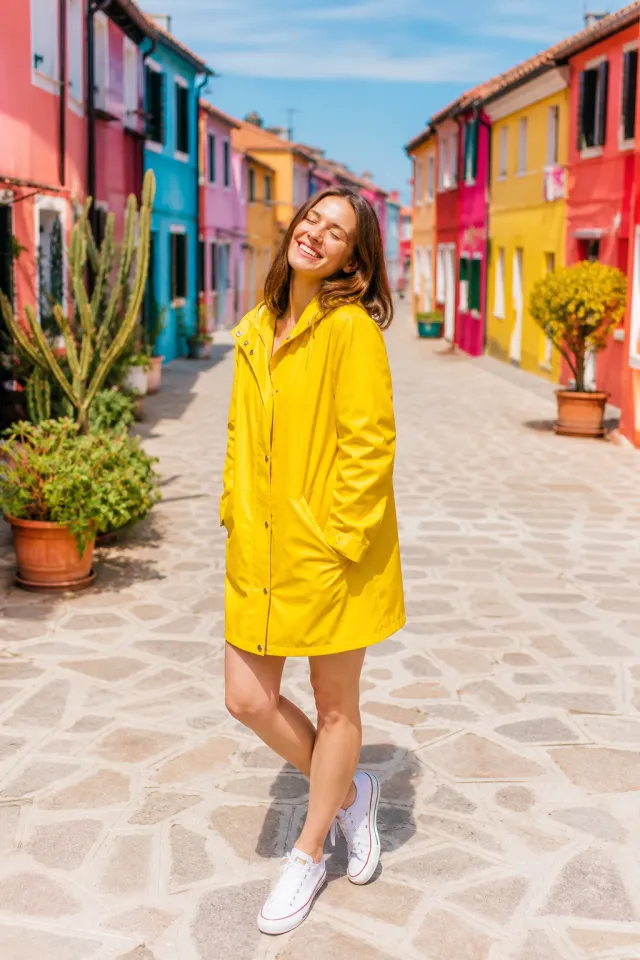
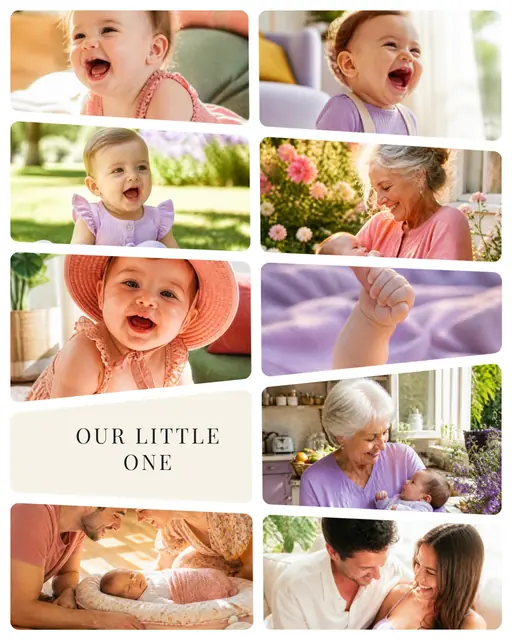
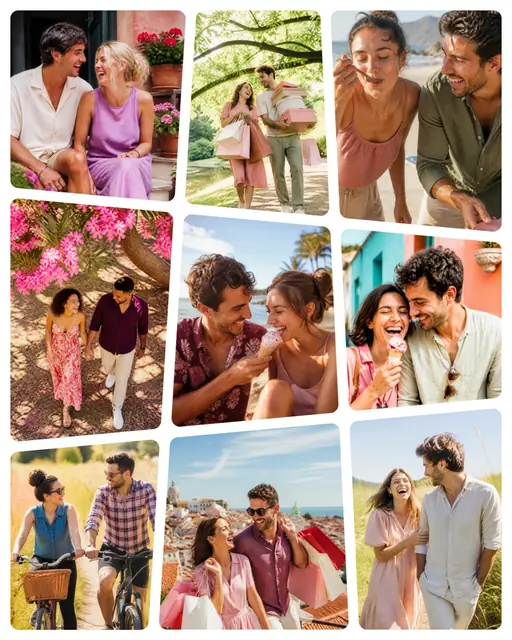
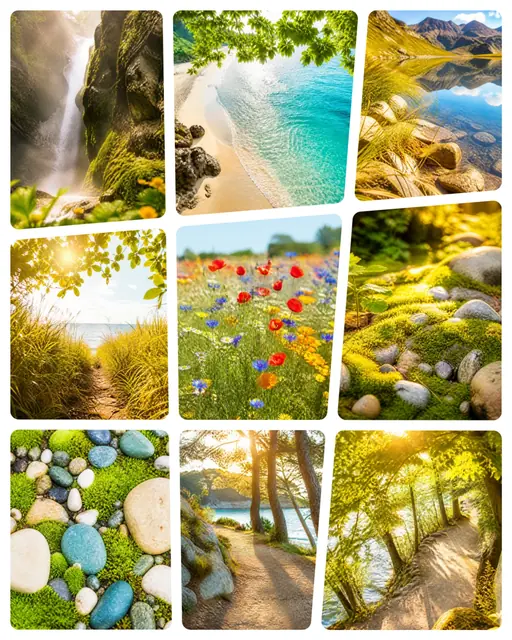
The most common way in, and the most useful, because an occasion decides more than it seems. A wedding wants air and few photos; a birthday wants movement and more of them; a holiday wants a grid that can absorb four hundred pictures without any single one having to be excellent. These pages carry the layouts that suit the occasion, and the reasoning for why.




















By where it is going
When the destination is fixed and the content is not
Start here when you already know the collage has to be an Instagram post, a story, a Facebook cover or an A4 print. Each of those is a fixed number of pixels with its own safe zones, and getting it wrong is the single most common way a good collage arrives cropped or blurry. These pages give the exact sizes and what to keep clear of the edges.
By shape
When the shape is the idea
A heart, a circle, an arch, a hexagon. A shaped collage is a different exercise from a rectangular one, and the difference is measurable: a circle keeps almost all of its cell, a heart a little over half, and some outlines keep so little across the middle that a face no longer survives in them. So the shape decides which photos can go in it, not the other way round. These pages say which photos suit which shape, and which shapes are worth the trouble at all.


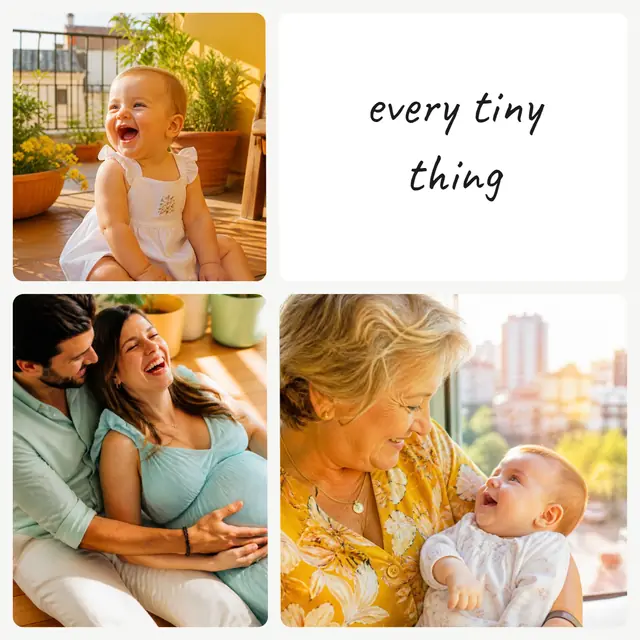


By number of photos
When you already know how many you have
The most underrated way to choose. Two photos and twelve photos are not the same object: at twelve, a face inside a cell is about the size of a fingernail on a phone, so anything that depended on an expression is gone. These pages start from the count you actually have and show what still works at it.
By look
When you know what it is of, and now it has to feel like something
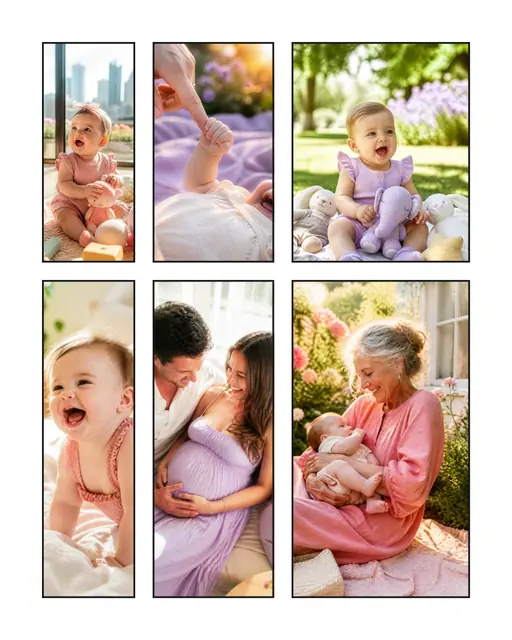
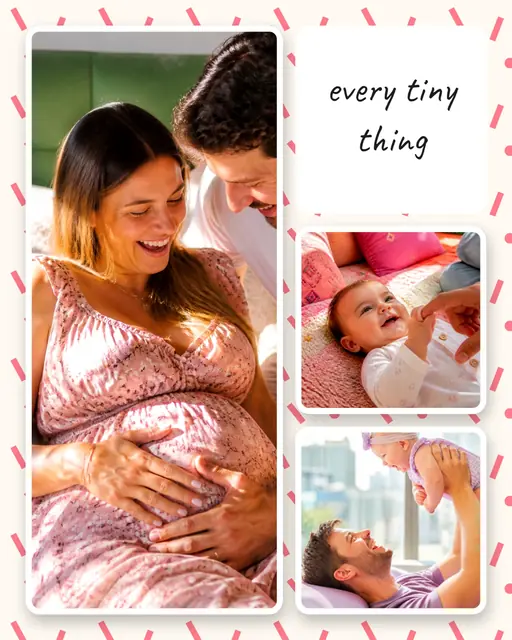
The last question rather than the first. Same photos, same arrangement, and a black and white treatment says something a pastel gradient does not: one reads as a keepsake, the other as a birthday. A look sets the borders, the corners, the shadow, the colour treatment and the paper in one go, so these pages are worth browsing when the collage is already right and still feels wrong. Every collage on them was rendered by the editor, so what you see is what you get.



How to pick one in ten seconds
If you are not sure, this is the order that gets it right most often.
- Decide where it is going first. A post, a story, a print, a card. This fixes the size, and the size is the only choice that is expensive to change later: altering it re-crops every cell.
- Count your good photos, not your photos. The ones you would show someone. That number, not the number in the folder, is the cell count you want.
- Ask whether one of them is clearly the best. If yes, take a layout with a hero cell. If no, take an even grid, which is more forgiving because nothing has to carry the composition.
Everything else, borders, background, shape, is adjustable in seconds once the photos are in. Those three are not.
What free means here
Free with no asterisk: no account, no sign-up, no watermark on the export, no resolution cap, and no paid tier that unlocks the layouts. Every template on this site opens fully.
The reason it can work that way is that nothing is uploaded. The editor runs in your browser, your photos stay on your device, and there is no server cost per collage to recover. That is also the privacy answer: there is no copy of your photos to keep, because there was never a copy.
Or start from nothing
Templates are a shortcut, not a requirement. Open the editor empty, drop your photos in and press Auto: it arranges them itself, gives the sharpest ones the biggest cells, keeps faces out of the seams, and proposes several arrangements rather than one. It is often faster than browsing, and it is the better route when your photos are an odd mix of shapes.