How to make a photo collage without an app (free, no watermark, no sign-up)
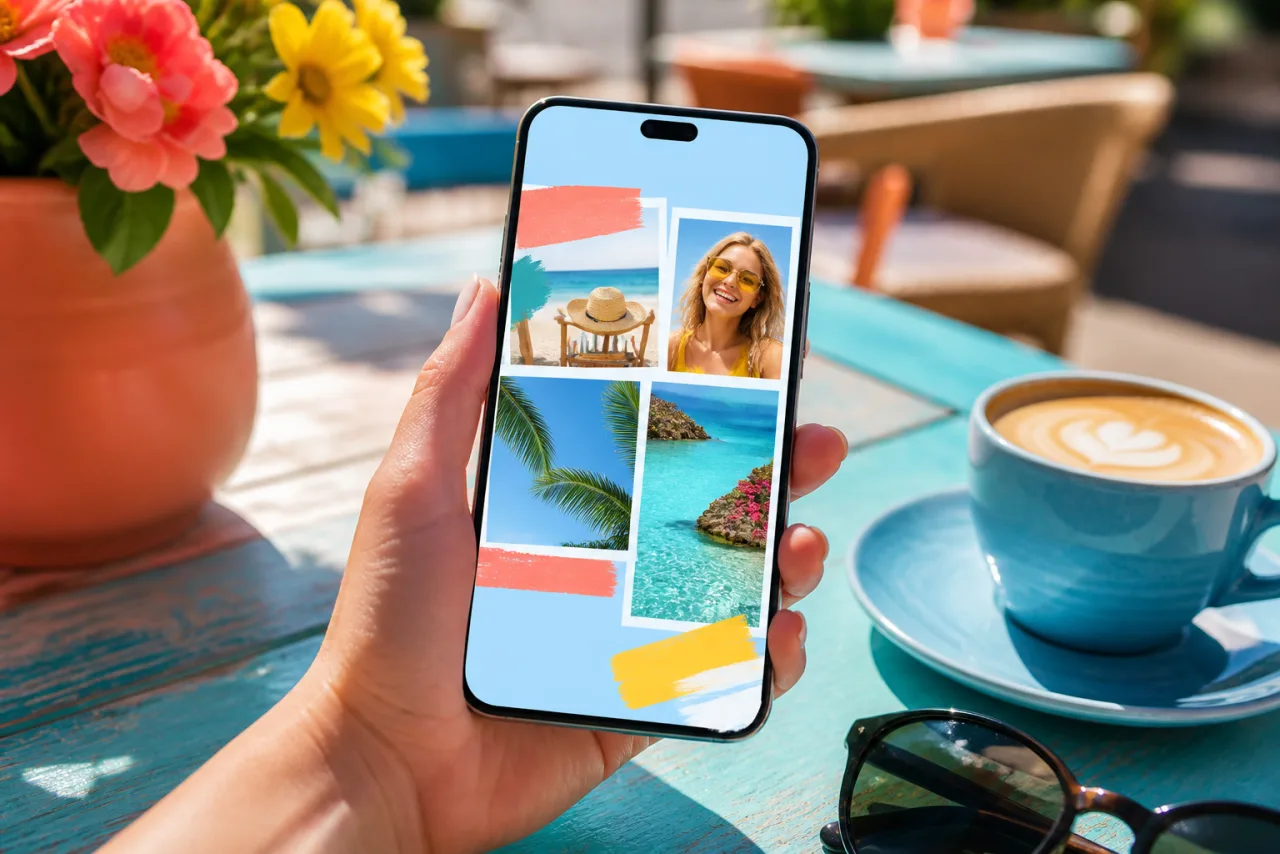
You do not need another app on your phone to put a few photos together. Your phone already has two ways to do it, and your browser has a third that beats both. Here is what each one does, where it stops, and which one to pick for a post, a story or a print.
1. The three ways, and what each one gives you
| Google Photos | iPhone Shortcuts | Browser (StudioCollage) | |
|---|---|---|---|
| Install | Already on most phones | Already on iPhone | Nothing |
| Account | Google account | None | None |
| Photos | 2 to 6 | Any number, one row or column | 2 to 12 in a grid, more on poster layouts |
| Layouts | A handful of styled templates | Row or column only | Grids, magazine, mosaic, shapes, freestyle |
| Sizes | Fixed | Sum of the originals | Instagram, story, cover, print, custom |
| Text, borders, backgrounds | No | No | Yes |
| Watermark | No | No | No |
| Where the photos go | Your Google library | Stay on the phone | Stay on the device |
Short version: Google Photos for a quick square of four to six, Shortcuts for two photos in a row, the browser for anything you care about.
2. Google Photos: a collage of up to six, in four taps
Google Photos is on every Android phone and on most iPhones, and its collage tool is decent for a quick share.
- Open Google Photos and select two to six photos (long-press the first, tap the others).
- Tap the plus button at the top, then Collage.
- Pick one of the templates. Tap a cell to swap its photo with another cell; drag inside a cell to reframe.
- Tap Save. The collage lands in your library like any photo.
Where it stops: six photos, a fixed set of templates with their own decorative styles, a single square-ish output size, no text and no borders of your own. If you need a seventh photo, a story format or a clean white grid without the styling, you are at the end of the road. Our Google Photos guide goes through every option and its workaround.
Let Auto lay them out, then fix what you want.
Free, no watermark, and your photos stay on your device.
Open StudioCollage3. iPhone Shortcuts: photos in a row, no app store
The Shortcuts app is part of iOS and has a Combine Images action. It is the fastest way to put two or three photos side by side on an iPhone.
- Open Shortcuts, create a new shortcut.
- Add Select Photos (turn on Select Multiple), then Combine Images (Horizontally or Vertically, with an optional spacing), then Save to Photo Album.
- Run it. The shortcut stays in the app for next time, and can be added to the share sheet.
Where it stops: a strip, not a grid. Photos keep their own sizes, so a portrait next to a landscape gives an uneven edge. No cropping, no equal cells, no text. Good for a before and after, not for a birthday recap. The step by step, with the Android and Mac equivalents, is in how to put two photos side by side.
4. The browser: everything an app does, with nothing to install
A collage maker that runs in the browser is the third option, and the one most "no app" articles forget. Open the page, drop the photos, download the result. On a phone it works in Safari or Chrome; on a computer, in any browser.
- Open StudioCollage. There is no sign-up screen: the editor is the first thing you see.
- Pick the destination (Instagram post, story, Facebook cover, print) so the canvas is already the right size, or keep the default square.
- Add your photos from the camera roll or from files. They are read on your device and never uploaded.
- Choose a layout, or press Auto and pick one of the proposals: the generator counts the photos, keeps faces whole and balances the colors.
- Adjust what you want: gap, borders, a background color taken from the photos, a title. Then download as PNG or JPG, full resolution, no watermark.











Two layouts Google Photos cannot make: a magazine page of five, and a 3x2 grid of six with equal cells and a clean white gap.
Why this is not "just another app": there is nothing to install, nothing to update, no storage taken, and the same editor on your phone and your computer. Come back later and your project is still there, saved in the browser, without an account.
5. Which one for which collage
- A quick square for the family chat: Google Photos, four photos, done in twenty seconds.
- Two photos side by side: Shortcuts on iPhone, Gallery on Samsung, or the two-cell layout in the browser if you want equal cells and a gap.
- An Instagram post or story: the browser, because the format presets and the safe zones matter more than anything else. See the Instagram guide.
- Something to print: the browser, at the print size, so the export has the pixels the paper needs. See collage sizes.
- More than six photos: the browser, with a layout that fits the count. See how many photos to put in a collage.
6. About "free", watermarks and accounts
Most collage apps are free to open and paid to export: the free download carries a watermark, or is capped at a low resolution, or needs an account first. That is the business model, not a bug, and it is the reason people search for "without an app" in the first place.
The honest test takes one minute: make a two-photo collage, download it, and look at the corner of the file and at its pixel size. In StudioCollage the corner is empty and the size is the one you chose, because the editor is free, in full, for everyone. Here is everything it does.
Frequently asked questions
Can I make a collage without downloading an app?
Yes, three ways. Google Photos (on iPhone and Android) makes a collage of up to six photos. The Shortcuts app on iPhone combines images in a row or a column. And a collage website such as StudioCollage runs in the browser with no install, no account and no watermark, with every layout and size.
Is a free online collage maker really free?
StudioCollage is: every layout, template and export is free, the download has no watermark, and there is no account. Some other sites add a watermark on the free export or cap the resolution; check the download before you rely on one.
Are my photos uploaded when I use a website?
Not with StudioCollage: the editor runs entirely in your browser, the photos are read from your device and never sent to a server. Other websites differ; if privacy matters, look for the same statement on their page.
How many photos can a collage have without an app?
Google Photos stops at six. The Shortcuts method has no limit but puts everything in one row or column. The browser method takes as many as the layout has cells, from two to a full grid and beyond, and auto collage picks the layout for the number you dropped.
Does it work on a computer too?
The browser method does, identically, on Windows, Mac and Chromebook. The phone methods are phone-only; the equivalents on a computer are covered in our Windows and Mac guides.