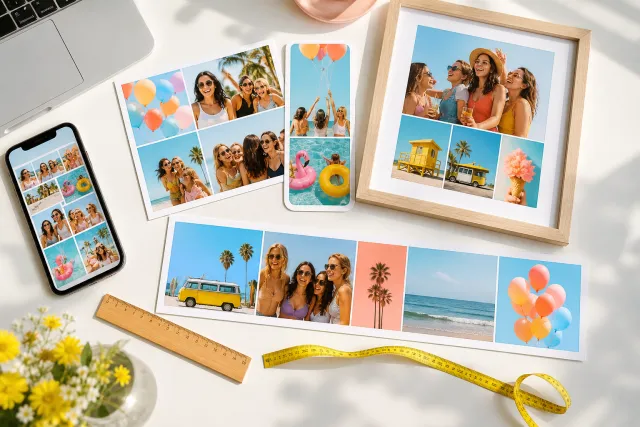
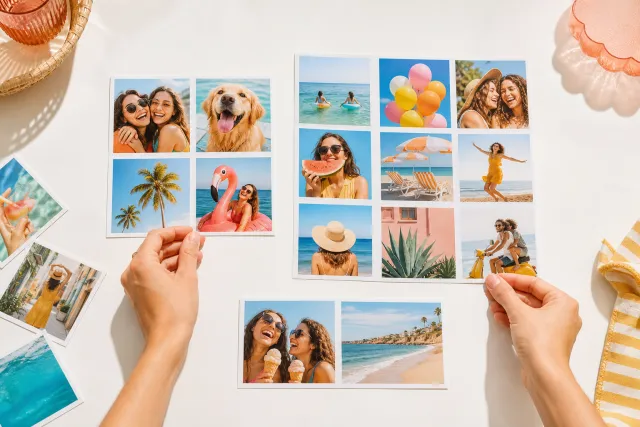
How to make a collage with photos of different sizes
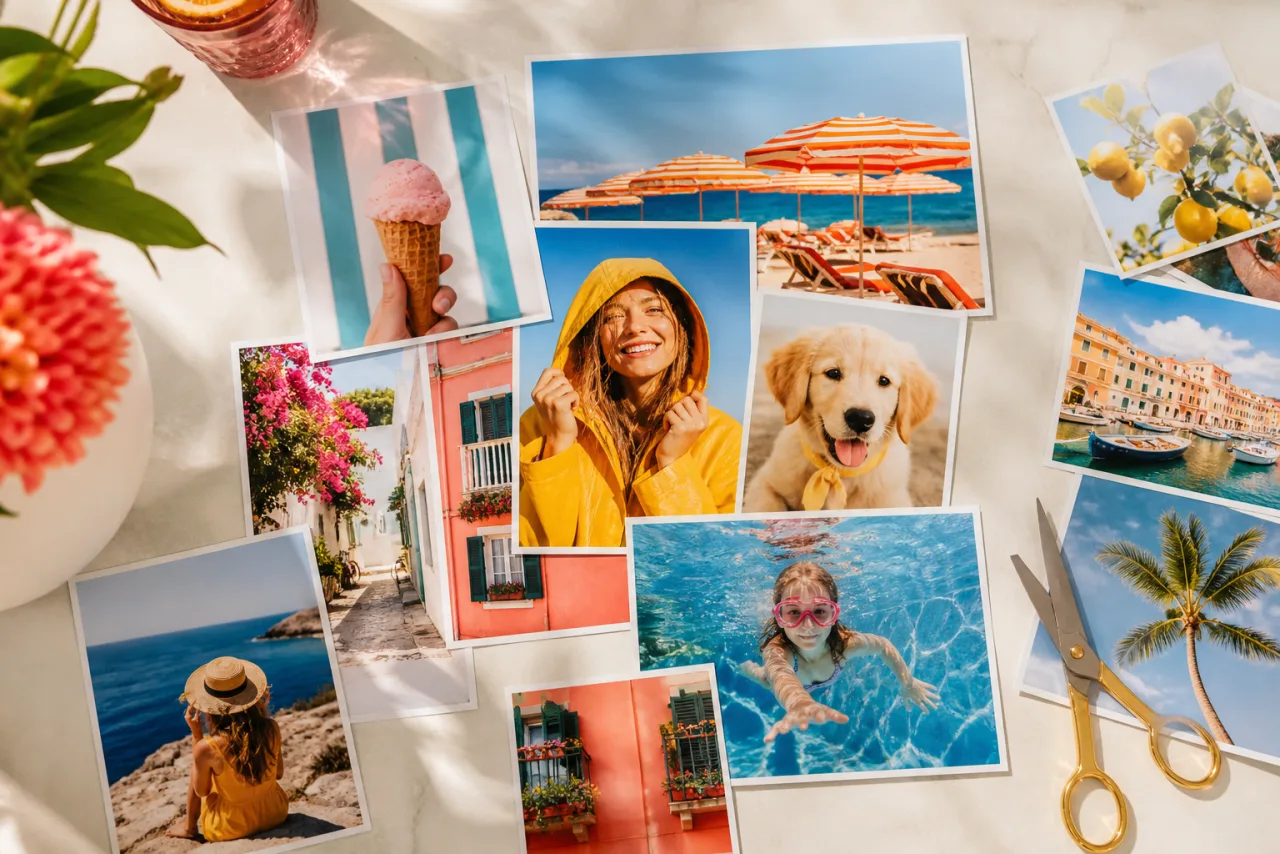
The photos you actually want to use are never the same shape. One is a portrait from a phone, one is a landscape from a camera, one is a square screenshot. Force them into equal cells and the app crops somebody out of the frame. There are four ways to fix that, and only one of them involves editing the photos: pick a layout that expects mixed shapes, and the problem disappears before it starts.
1. The short answer
Do not resize the photos. Change the layout instead. Four options, in the order you should try them.
| Your photos | What to use | What it costs |
|---|---|---|
| Mostly one shape, one or two odd ones | Equal grid, reframe the odd cells by hand | Ten seconds per odd photo |
| A real mix of tall and wide | A layout with uneven cells: mosaic, hero and row, magazine | Nothing, it is the natural fit |
| One photo clearly better than the rest | One big cell, the others small | Nothing |
| A photo that must not be cropped at all | Fit inside the cell, with background showing | A visible margin |
The mistake to avoid is at the end of this guide, and it is the one most people make first.
2. Why the crop happens at all
A collage cell has a shape of its own. When a photo goes in, one of two things has to give: either the photo is cropped to fill the cell, or it is shrunk to fit and leaves a gap. Almost every tool defaults to fill, because a full cell looks better than a gap.
Fill crops from the centre. That is a reasonable default and a bad one for photographs of people, because a person is rarely dead centre: they are usually in the upper third, which is the part a wide cell throws away first.
So the crop is not a bug and it is not your photos being wrong. It is a shape mismatch, and shape mismatches are solved by changing the cell, not the photo.
Let Auto lay them out, then fix what you want.
Free, no watermark, and your photos stay on your device.
Open StudioCollage3. Fix 1: use a layout with uneven cells
This is the one that solves the problem instead of managing it. Layouts with cells of different shapes exist precisely because camera rolls are mixed.
- Mosaic: a few large cells and several small ones, all different. Absorbs almost any mix. Five to seven photos.
- Hero over a row: one wide cell on top, three narrow ones under it. Perfect when you have one landscape and three portraits.
- Big left: one tall cell beside two wide ones. The mirror case: one portrait and two landscapes.
- Magazine: one large cell and four smaller ones of varying shape. The most forgiving of the lot.






The same mixed set in a mosaic and in a big left layout. Nothing was cropped to make either of these work; the cells were already the right shapes.
4. Fix 2: reframe inside the cell
If you want an even grid anyway, and sometimes you do because it looks calm, keep it and move the photo inside its cell.
Drag the photo within the frame until the face sits where you want it. In StudioCollage that is a drag inside the cell; on a phone it is a pinch and a drag. This changes nothing about the original file, so you can undo it or redo it as often as you like.
One rule of thumb worth knowing: in a square cell holding a portrait, aim to put the eyes about a third of the way down. It reads as deliberate framing rather than an accident.
5. Fix 3: give the odd photo a different size
Not every photo deserves the same space. A screenshot, a scan, a picture someone sent you on a messaging app: these are lower quality than the rest and they announce it loudest at full size.
Put the best photo in the biggest cell and the weakest in the smallest. This is not a compromise, it is composition: the eye goes to the largest thing first, and you get to choose what that is.


The same photos with a hero and without. On the left the strongest shot leads; on the right everything competes.
6. Fix 4: fit instead of fill, when the edges matter
For most photographs, filling the cell is right. For a few, it is not: a document, a full body shot, a picture where the composition depends on what is at the edge.
Switch that cell to fit and the whole photo stays visible, with a margin of the collage background showing around it. Pick a background colour that is not white if you use this, because a white margin on a white page looks like a mistake rather than a choice.
Use it for one or two cells, not all of them. A collage where every photo floats in its own margin stops being a collage and becomes a contact sheet.
7. The mistake to avoid
Do not crop the photos in your gallery app before you start. It feels like preparation and it is the thing that will cost you the afternoon.
Three reasons. You do not yet know what shape each cell will be, so you are cropping to a guess. The crop is destructive on some phones, so the pixels are gone if you change your mind. And once every photo is a square, you have thrown away the very information a good layout would have used: the fact that some of them were tall.
Put the originals in. Crop inside the collage, where it is reversible and where you can see the result next to its neighbours.
8. Make it
Open StudioCollage, pick the destination so the canvas is the right shape, then drop in every photo at its original size, mixed shapes and all.
Then either choose one of the uneven layouts above, or press Auto: the generator reads the shape of each photo and the position of the faces, and proposes layouts where the tall ones land in tall cells. That is the whole problem this guide is about, solved before you touch anything. Every cell stays editable afterwards, so you can still reframe by hand.
Next: how many photos to use, every size in pixels, and fifty ideas with their layouts.
Frequently asked questions
Can I put portrait and landscape photos in the same collage?
Yes, and it looks better than forcing everything to match. The trick is to choose a layout with cells of different shapes, so the tall photos go in tall cells and the wide ones in wide cells. A grid of identical squares is the only layout that genuinely fights mixed shapes.
How do I stop a collage cropping heads off?
A cell crops from the centre by default, which is exactly where a face usually is not. Either reframe the cell by dragging the photo inside it, or use a layout whose cell matches the photo shape so almost nothing needs cropping. Auto collage does the second automatically: it finds the faces first, then chooses where each photo goes.
Should I resize my photos before making a collage?
No. Resizing before means guessing what the layout will need, and you will guess wrong. Put the originals in at full size and let the cells do the cropping, which is non destructive and reversible. The only case for resizing first is a photo so small that it is blurry even in a small cell.
What if one photo is much lower quality than the others?
Give it the smallest cell. A phone screenshot next to a camera photo looks bad at equal size and perfectly fine at a quarter of the size. Layouts with one hero and several small cells exist for exactly this.
Can I keep a photo uncropped in a collage?
Yes, by fitting it inside its cell instead of filling the cell, which leaves a margin of background colour around it. It is the right choice for a photo where the edges matter, a document or a full body shot, and the wrong one for a face, where a small crop costs nothing.