Collage wallpaper for your phone: 12 ideas and the exact sizes for iPhone, Android, Mac and 4K
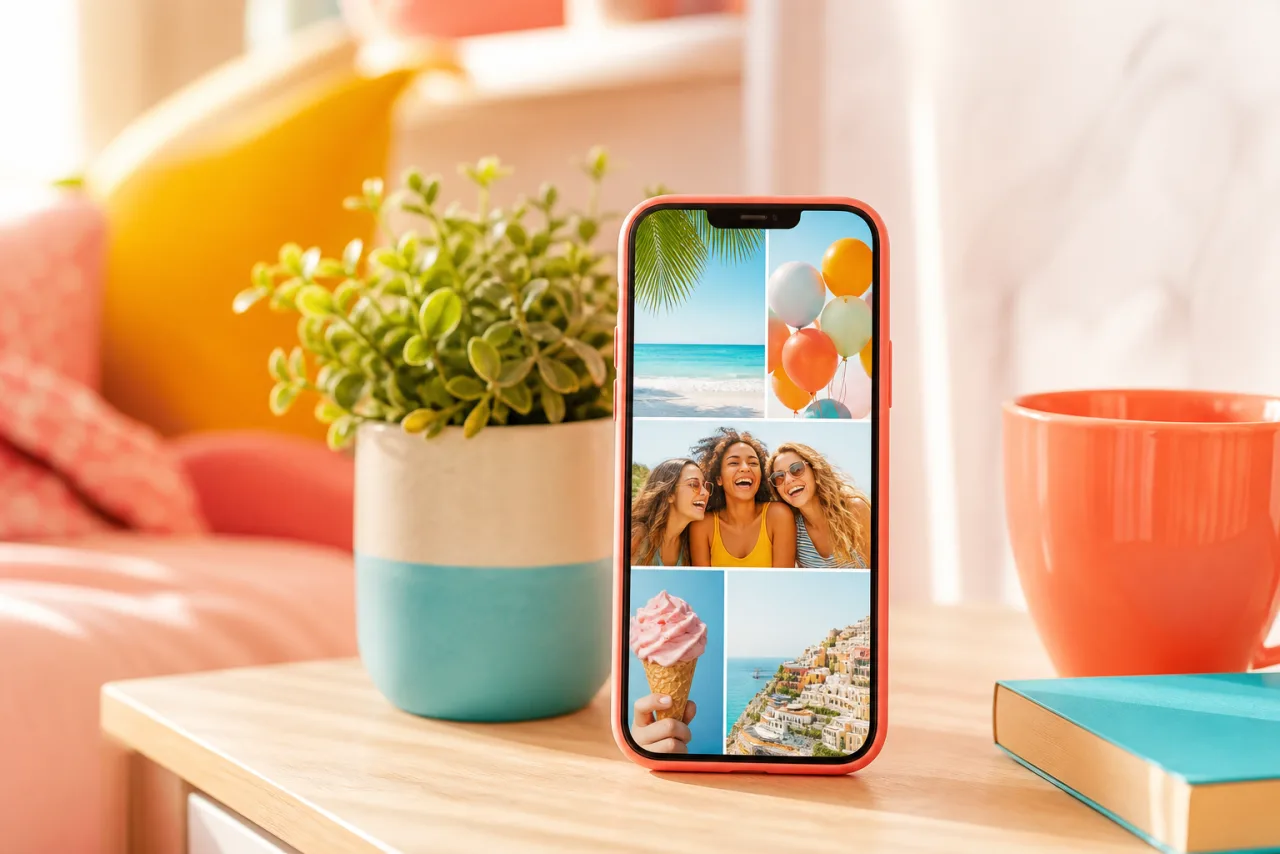
A collage wallpaper is the one you look at a hundred times a day, which is why it should fit the screen to the pixel and keep its best photo out from under the clock. Here are the exact sizes for every recent device, the zones to keep clear, and twelve collages that work as a lock screen.
1. The exact size for your screen
Phones stretch or crop any wallpaper that does not match their screen. Make the collage at the native resolution and nothing moves.
| Device | Wallpaper size | Notes |
|---|---|---|
| iPhone 16, 15, 14 Pro | 1179 x 2556 | iPhone 14 and 13: 1170 x 2532; iPhone 16 Pro: 1206 x 2622 |
| iPhone 16 Plus, 15 Plus, 15 Pro Max, 14 Pro Max | 1290 x 2796 | iPhone 16 Pro Max: 1320 x 2868 |
| iPhone SE (2022), iPhone 8 | 750 x 1334 | 16:9 screen, no notch |
| Samsung Galaxy S24, S25 and A series | 1080 x 2340 | Galaxy S Ultra: 1440 x 3120; Pixel 8: 1080 x 2400; Pixel 9: 1080 x 2424 |
| iPad (10th gen), iPad Air 11 | 1640 x 2360 | iPad Pro 13: 2064 x 2752; iPad mini: 1488 x 2266 |
| MacBook Air 13 | 2560 x 1664 | MacBook Pro 14: 3024 x 1964; 16: 3456 x 2234 |
| Full HD monitor or laptop | 1920 x 1080 | 16:9 |
| QHD and 4K monitors, TV | 2560 x 1440 and 3840 x 2160 | 16:9 |
The wallpaper presets in StudioCollage carry these sizes; if your phone is not listed, Settings, About (iPhone) or Settings, Display (Android) shows the resolution, and you can type it as a custom size. Every other size, for posts, stories and prints, is in the sizes guide.
2. Lock screen and home screen: what covers what
A wallpaper is never seen in full. The phone draws its own things over it, and a collage has to leave them room.
- Lock screen, top quarter. The time, the date and the widgets on iPhone; the clock on Android. Anything there is hidden or fights the numbers. Put a calm cell here: sky, water, a plain wall, or a solid color block.
- Lock screen, middle to bottom. Notifications stack from the center down, and the flashlight and camera buttons sit in the bottom corners on iPhone. The best photo goes in the middle-lower area, where it is visible between notifications.
- Home screen, everywhere. App icons cover most of it in a grid. A home screen collage works as a soft pattern (low contrast, no faces) or as a single large photo with the icons over it, not as a detailed grid.
- Depth effect on iPhone. With one clear subject in the lower half, iOS can place the clock behind the subject. A collage with one large face cell near the middle gets the effect; a busy grid does not.







Two lock screens: a calm sky cell under the clock with the faces below, and a three-row strip whose top row is water. Both keep the top quarter quiet.
Let Auto lay them out, then fix what you want.
Free, no watermark, and your photos stay on your device.
Open StudioCollage3. Twelve collage wallpapers that work
- Nine squares. A 3x3 grid of the summer, the clock over the top row. The most popular for a reason; choose nine photos with the same light.
- The film strip. Three or four wide photos stacked, thin white gaps, like a strip of negatives. Put the landscape at the top.
- Sky on top. One tall hero cell in the lower two thirds, one calm cell (sky, sea, a wall) in the top third for the clock. The cleanest lock screen there is.
- Polaroid scatter. Four or five photos in white frames, slightly tilted, over a solid background taken from the photos. A home screen pattern that still reads under icons.
- One color. Six photos chosen for a single tone: all the blues of a beach trip, all the greens of a hike. Calm, coherent, never loud.
- The year in twelve. A 4x3 grid, one photo per month. Change it every January.
- Four moods of one dog. A 2x2 grid of the same pet: asleep, alert, mid-run, mid-yawn. See pet templates.
- Then and now. Two photos stacked: the kids ten years ago, the kids today. Same pose if you can stage it.
- The trip in colors. A strip of five cells, each a place, ordered by the color of the city: yellow Lisbon, blue Santorini, pink Jaipur.
- The concert. A dark collage: stage lights, the crowd, the ticket, one face lit by a phone. Dark wallpapers save battery on OLED screens and make white icons pop.
- Baby by month. A 3x4 grid of the first year, or the current month big with the earlier ones small.
- Minimal. One photo, one solid color block, nothing else. The photo in the lower half, the color (picked from the photo) on top, under the clock.
4. Make it in two minutes
- Open StudioCollage and choose the wallpaper preset for your device, or type the resolution as a custom size.
- Add the photos. Press Auto for layouts that fit the tall screen and keep faces whole, or pick one of the ideas above as a grid, a strip or a freestyle layout.
- Drag the quiet cell to the top; reframe the hero so the face sits below the middle of the screen.
- Set the gap (thin for a grid, none for a seamless look) and a background color picked from the photos.
- Download as PNG. It lands in your photos at the exact screen size.
iPhone: Settings, Wallpaper, Add New Wallpaper, Photos, pick the collage. Turn off Perspective Zoom so nothing shifts, and set it for the lock screen, the home screen or both (use a separate, calmer collage for the home screen). Android: long-press the home screen, Wallpaper and style, choose the collage from your photos, keep the full image when Samsung offers a crop, and pick lock, home or both.
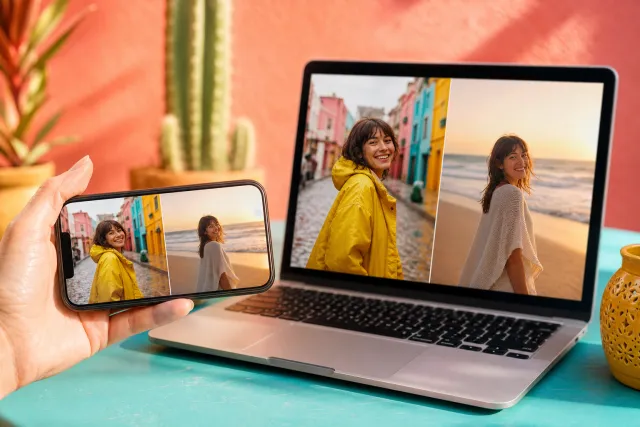
For a Mac or a PC, export at the monitor size and set it from System Settings, Wallpaper or Settings, Personalization, Background. Wide layouts with four to six cells suit the landscape screen; the ideas above still apply, with the menu bar instead of the clock as the zone to keep calm.
Frequently asked questions
What size should a phone wallpaper collage be?
The exact resolution of the screen: 1179 x 2556 for an iPhone 16 or 15, 1170 x 2532 for an iPhone 14 or 13, 1290 x 2796 for the Plus and Pro Max models, 1080 x 2340 for recent Galaxy phones and 1080 x 2400 for a Pixel 8. A wallpaper at the wrong ratio is cropped or zoomed by the phone.
Where should I put the photos on a lock screen collage?
In the lower two thirds. The clock and the date sit in the top quarter of the screen, and notifications stack from the middle down, so the best photo belongs in the middle-lower area, with a calm cell (sky, wall, color) at the top.
How do I set a collage as wallpaper on iPhone?
Save the collage to Photos, then Settings, Wallpaper, Add New Wallpaper, Photos, pick the collage. Turn off Perspective Zoom to keep it pixel-exact, and choose whether to use it on the lock screen, the home screen or both.
How do I set a collage as wallpaper on Android?
Long-press an empty spot on the home screen, tap Wallpaper and style (or Wallpapers), choose My photos or Gallery, select the collage, then choose Lock screen, Home screen or both. Samsung adds a crop step: keep the whole image.
Can I make a collage wallpaper for a Mac or a PC?
Yes, at the monitor resolution: 2560 x 1664 for a MacBook Air 13, 3024 x 1964 for a MacBook Pro 14, 1920 x 1080 or 3840 x 2160 for a monitor. Wide layouts with four to six cells suit the landscape shape.