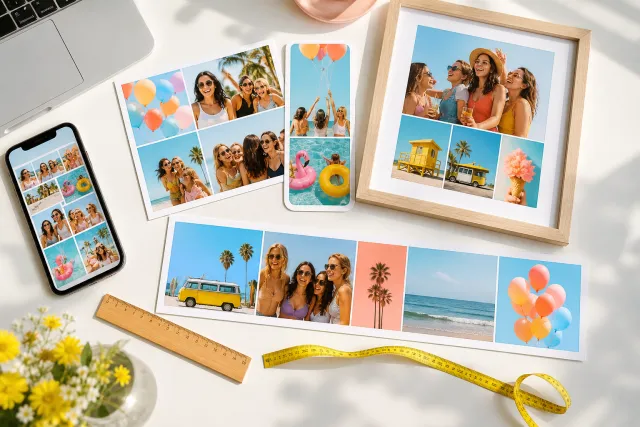
How to make a collage in Google Photos, and what to do when six photos is not enough

Google Photos has a collage tool that most people find by accident and then use every week. It is quick and it is free, and it stops at six photos with a style you did not choose. Here is how to use it well, on the phone and on the web, and where to go when you hit its walls.
1. On the phone: Android and iPhone
The steps are the same in the Android and iPhone apps.
- Open Google Photos. Long-press the first photo, then tap the others: two to six in total.
- Tap the plus button at the top of the screen, then Collage.
- Pick a template from the row at the bottom. Some are plain grids, most add a style (paper, color blocks, rounded frames).
- Tap a cell to select it, tap another to swap them. Drag inside a cell to reframe the photo. Pinch to zoom within a cell.
- Tap Save. The collage appears in your library as a new image, next to the originals.
To share straight away, use the share button on the saved collage. To reopen the cells later, open the collage and tap Edit.
2. On the web: photos.google.com
The browser version has the same tool, useful on a laptop where selecting many photos is faster.
- Go to photos.google.com. Hover a photo and click the check mark, then select the others (two to six).
- Click the plus button (Create) at the top right, then Collage.
- Choose a template, swap cells by clicking, reframe by dragging, and click Save.
The result is saved to your library and can be downloaded (three dots, Download) as a JPG.
Let Auto lay them out, then fix what you want.
Free, no watermark, and your photos stay on your device.
Open StudioCollage3. The four walls
Google Photos is built for speed, and the collage tool shows it. Four limits you will meet:
- Six photos. Select seven and Collage vanishes from the menu. A birthday with ten good photos needs two collages, or another tool.
- Styles you cannot remove. Most templates add paper textures, color blocks or rounded frames. A plain white grid with your own gap width is not on offer.
- One size per template. The output is about 2000 pixels on the long side, in the template's own ratio. No 9:16 for a story, no 4:5 for the feed, no 300 DPI for a print.
- No text, no shapes. A date, a title or a heart-shaped cell means exporting and opening another app.
None of that matters for a quick square to the family chat. All of it matters the moment the collage is for Instagram, for a card or for a frame.
4. Past six photos, or past the style: the browser
When Google Photos stops, the next step does not have to be an app. A collage maker in the browser takes over with nothing to install and no account. StudioCollage runs on the phone in Chrome or Safari and on the computer in any browser; the photos are read from the device and never uploaded.
- Open StudioCollage. Pick the destination: Instagram post or story, Facebook cover, print, wallpaper.
- Add the photos, seven, ten or twelve of them. Press Auto: the generator proposes several layouts that fit the count, keep faces whole and balance the colors. Or pick a grid, a magazine page, a mosaic or a shape yourself.
- Set the gap and border you actually want (including none), a background color taken from the photos, a title if you like.
- Download without watermark, at the size of the destination.









Nine photos in a clean 3x3 grid, and a magazine page with a hero cell: two things the Google Photos tool does not do.
Photos stored in Google Photos can be added from the phone's picker on Android (the Google Photos entry in the file chooser) or after downloading them on a computer.
5. Three tips for a better Google Photos collage
- Pick the plain template. One or two templates in the row have no decoration. They age better than the paper textures and look cleaner in a feed.
- Put the best photo in the biggest cell. Templates with a large cell make a hierarchy; use it for the face or the moment, not for the sky.
- Reframe every cell. The default crop centers each photo, which cuts heads on portraits. Drag each one so the eyes sit in the upper third of the cell.
How many photos a collage should have, and which layout for each count, is in how many photos to put in a collage. The other built-in options on each phone are in the iPhone guide and the Android guide.
Frequently asked questions
How many photos can a Google Photos collage have?
Six. The Collage tool accepts two to six photos; with seven or more selected, the option disappears from the menu. For more photos, use a collage maker that takes up to twelve in a grid and more on poster layouts, such as StudioCollage in the browser.
Where is the collage option in Google Photos?
On the phone: select the photos, tap the plus button at the top of the screen, then Collage. On the web (photos.google.com): select the photos, click the plus button (Create), then Collage. It only appears with two to six photos selected.
Can I change the layout or remove the style in Google Photos?
You can pick another template and swap photos between cells, and some templates let you change a color. You cannot remove the decorative style, set your own gaps or borders, or change the output size.
Can I edit a Google Photos collage after saving?
Open the collage and tap Edit: the collage editor reopens with its cells, so you can swap or reframe photos and save again. Edits made with the regular photo tools (crop, filters) apply to the whole image.
What size is a Google Photos collage?
About 2000 pixels on the long side, in the shape of the template. Good for any social post; short for a print larger than 5 x 7 inches at 300 DPI.