How to make a collage on iPhone: 5 ways, with or without an app
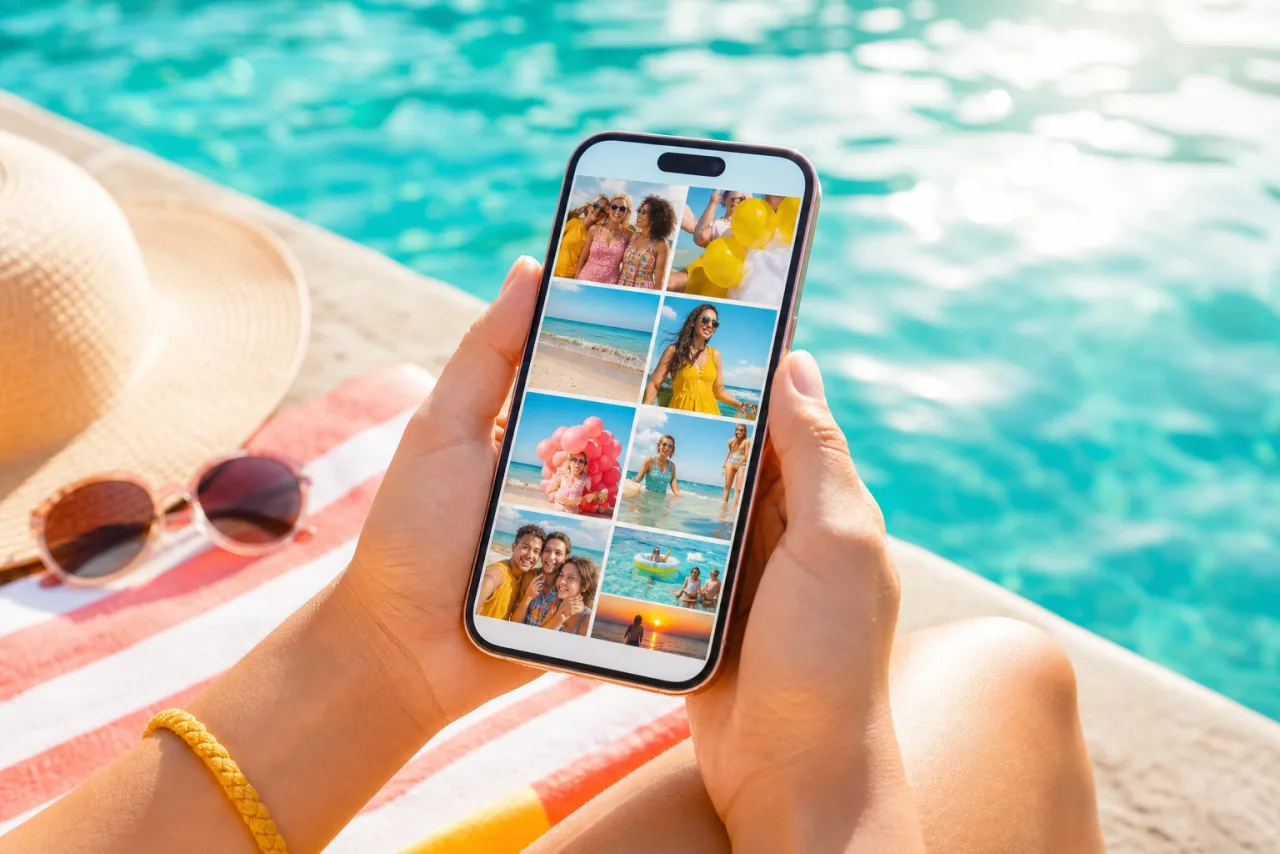
The iPhone Photos app can do almost anything to one picture and nothing to combine two. So every collage on an iPhone goes through something else: a shortcut, a board, Google, Instagram, or the browser. Five ways, from the quickest to the most complete, with what each one cannot do.
1. Five ways at a glance
| Method | Install | Photos | Layouts | Best for |
|---|---|---|---|---|
| Shortcuts (Combine Images) | Nothing | Any number | Row or column | Two photos side by side, fast |
| Freeform | Nothing | Any number | Free placement | A scrapbook look, printing as PDF |
| Google Photos | Google Photos app | 2 to 6 | A few templates | A quick square to share |
| Instagram story Layout | 2 to 6 | Fixed grids | A story, inside Instagram | |
| Safari, StudioCollage | Nothing | 2 to 12 in a grid, more on poster layouts | Grids, magazine, mosaic, shapes, auto | Posts, stories, prints, anything with text or a size |
2. 1. Shortcuts: two photos in a row, nothing to install
Shortcuts is already on your iPhone. One three-step shortcut turns any selection of photos into a single image, side by side or stacked.
- Open Shortcuts, tap the plus button.
- Add Select Photos and turn on Select Multiple.
- Add Combine Images: choose Horizontally (side by side) or Vertically (stacked), and a spacing in pixels if you want a gap.
- Add Save to Photo Album, give the shortcut a name, run it.
Good: full resolution, no account, thirty seconds once the shortcut exists. Not good: it is a strip, not a grid, the photos keep their own sizes (a portrait beside a landscape makes a ragged edge), and there is no text, no border, no format. Perfect for a before and after; see two photos side by side for the fine points.
Let Auto lay them out, then fix what you want.
Free, no watermark, and your photos stay on your device.
Open StudioCollage3. 2. Freeform: a board you arrange by hand
Freeform is the whiteboard app that came with iOS 16. Add photos from the library, resize them, rotate them, overlap them, add text and shapes. It is the closest thing to a freestyle collage the iPhone ships with.
- Open Freeform, create a board, tap the photo icon to insert pictures.
- Drag, pinch and rotate each photo. Use the guides that appear to align edges.
- To get an image out: share the board as a PDF (sharp, good for printing), or take a screenshot of the area (quick, screen resolution only).
Good: total freedom, nice for a scrapbook or a mood board. Not good: no grid, no equal cells, no social sizes, and the export is a PDF or a screenshot rather than a clean PNG at 1080 pixels. Fine for a print of a hand-made look, impractical for a weekly post.
4. 3. Google Photos: up to six, in four taps
If Google Photos is on your iPhone, it has the simplest grid collage of the five.
- Select two to six photos, tap the plus button, choose Collage.
- Pick a template, tap a cell to swap photos, drag inside a cell to reframe, save.
Good: fast, decent templates, the result lands in your library. Not good: six photos maximum, styled templates you cannot strip down, one output size, no text. If you need more than six or a specific format, this is where the browser method takes over. Our Google Photos guide covers each template and its limits.
5. 4. Instagram stories: the Layout mode
Inside the Instagram story camera, the Layout mode (the icon with four squares on the left) takes two to six photos into a fixed grid and posts it as a story.
- Open the story camera, tap Layout, pick a grid, tap each cell to fill it from the library.
- Add stickers and text, then share to your story.
Good: no leaving the app, safe zones handled for you. Not good: stories only (the grid cannot be posted to the feed or saved at full quality), square-ish cells that crop portraits, no control over gaps. For a feed post or a story with a nicer layout, make it outside at 1080 x 1920 and upload the image: the Instagram guide explains the sizes and the zones to keep clear.
6. 5. Safari: a full collage maker, no app, no account
The method that has everything the others lack, and still installs nothing: open a collage maker in Safari. StudioCollage runs entirely in the browser, reads the photos from your iPhone without uploading them, and exports without watermark.
- Open StudioCollage in Safari. No sign-up, the editor is the first screen. Add it to your home screen from the share menu if you want an icon.
- Pick the destination: Instagram post or story, Facebook cover, a print size, or a custom size. The canvas is already right.
- Add photos from the library. Press Auto to get several layouts that fit your count and keep faces whole, or choose a grid, a magazine page, a mosaic or a shape yourself.
- Reframe any cell with a drag, adjust gaps and borders, pick a background color from the photos, add text if you want.
- Download. The file lands in Photos, at the full export size, ready to post or print.








Two layouts none of the built-in methods offer: a magazine page of five, and a tall portrait cell with three details. Both made in Safari.
Your project is saved in the browser, so you can come back to it later on the same phone. The same page works on a Mac or a PC, with the same project if you move the photos over.
7. Which one today
- Two photos, right now: Shortcuts.
- A quick square for the group chat: Google Photos.
- A story, without leaving Instagram: Layout mode.
- A hand-made, overlapping look: Freeform.
- A post, a story with a real layout, a print, more than six photos, or any text: Safari and StudioCollage.
For the number of photos that fits each format, see how many photos to put in a collage; for every pixel size, photo collage sizes.
Frequently asked questions
Does the iPhone have a built-in collage maker?
Not in the Photos app. The two built-in ways are the Shortcuts app (a Combine Images action that puts photos in a row or a column) and Freeform (a free board where you arrange photos by hand). Neither offers grids, sizes or templates.
How do I make a collage on iPhone without an app?
Build a three-action shortcut (Select Photos, Combine Images, Save to Photo Album) for a quick strip, or open a collage maker in Safari: StudioCollage runs in the browser with no install and no account, and the photos stay on the phone.
Can I make a collage in the Instagram app?
In stories, yes: the Layout mode in the story camera takes two to six photos in a fixed grid. For a feed post there is no collage tool inside Instagram; make the collage elsewhere at 1080 x 1350 and post it as a photo.
How many photos can I put in a collage on iPhone?
Six in Google Photos and in Instagram Layout, any number in a Shortcuts strip, and a full grid or a poster layout in a browser collage maker. Past that, make two collages or a carousel.
Will the collage lose quality?
Shortcuts keeps the original pixels. Google Photos exports at about 2000 pixels and Instagram Layout at screen resolution: fine for a post, short for a print. A browser collage maker exports at the size you choose, up to print sizes at 300 DPI.