How to make a photo collage on Windows 11: Paint, PowerPoint, and online without installing anything
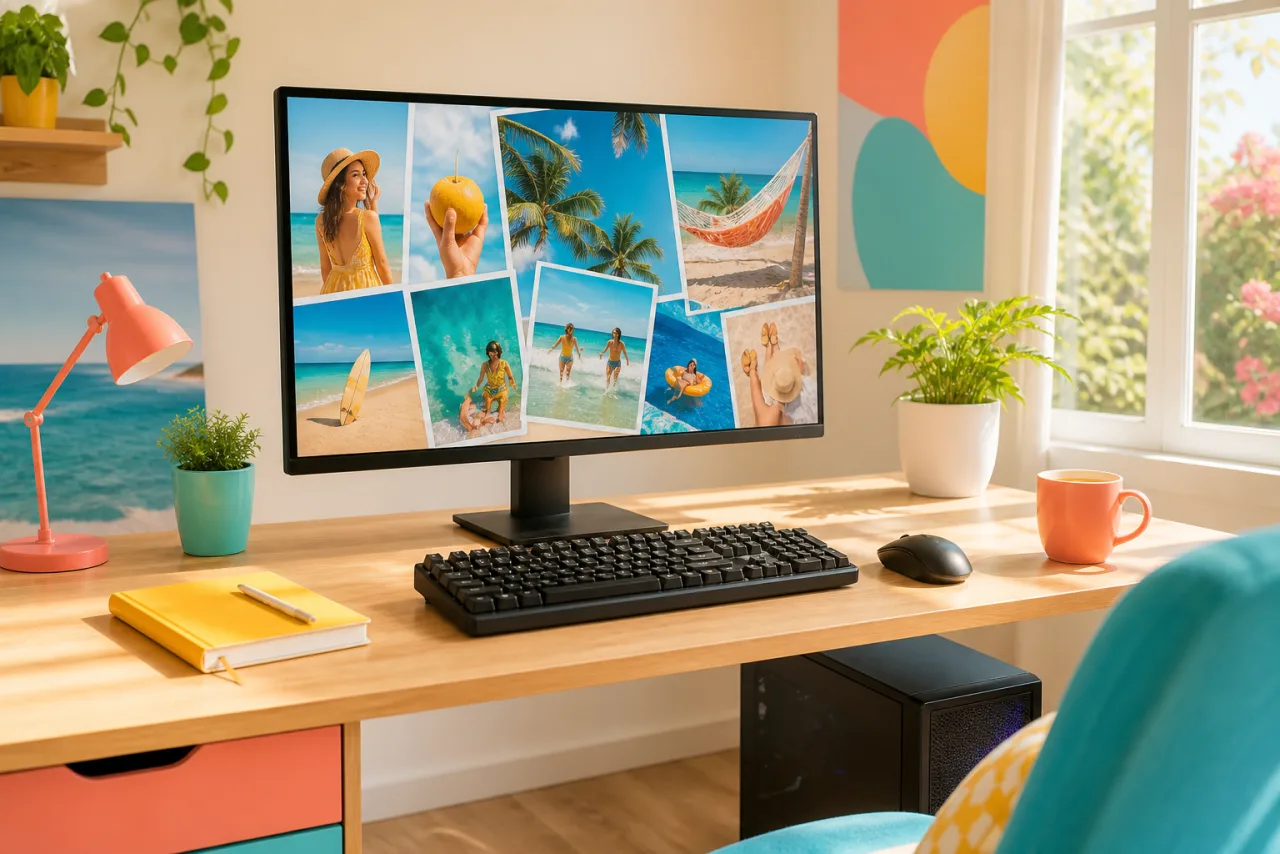
Windows 11 ships a Photos app that edits one picture at a time and no collage tool at all, which is why the search results for this question are full of software downloads. You do not need one. Paint and PowerPoint are already on the PC, and the browser does the rest.
1. Three ways, no download
| Method | Already on the PC | Photos | Layouts | Best for |
|---|---|---|---|---|
| Paint | Yes | 2 to 4 comfortably | Manual placement | A quick side by side |
| PowerPoint | With Microsoft 365 | Any number | Manual, with alignment guides | A tidy grid, a poster |
| Browser, StudioCollage | Needs nothing | 2 to 12 in a grid, more on poster layouts | Grids, magazine, mosaic, shapes, auto; sizes and text | Posts, stories, prints, anything you will share |
2. 1. Paint: a canvas you enlarge and fill
Paint is on every Windows 11 PC and can hold several photos on one canvas. It is manual, but for two or three photos it takes five minutes.
- Open the first photo in Paint (right-click the file, Open with, Paint).
- Enlarge the canvas: drag the small square handle at the bottom right corner of the image outwards, or use Image, Resize with the canvas option. Make it wide enough for all the photos.
- Open the second photo in another Paint window, press Ctrl+A then Ctrl+C, go back to the first window and press Ctrl+V. Drag the pasted photo into place; resize it with a corner handle while holding Shift to keep its proportions.
- Repeat for each photo. Fill the leftover canvas with white or a color using the bucket tool, or crop the canvas to the photos.
- File, Save as, PNG.
Where it stops: every alignment is by eye, there is no equal-cell grid, no gap control, no format preset. Good for a before and after; tiresome for six photos. For two photos, the side by side guide has the exact steps on every device.
Let Auto lay them out, then fix what you want.
Free, no watermark, and your photos stay on your device.
Open StudioCollage3. 2. PowerPoint: a slide exported as an image
If Microsoft 365 is on the PC, PowerPoint is a surprisingly good collage tool thanks to its alignment guides and its image export.
- Open a blank presentation. Set the canvas first: Design, Slide Size, Custom. Use 10 x 10 inches for a square, 8 x 10 for a print, 10.8 x 13.5 for a 4:5 Instagram post (PowerPoint works in inches; the export scales to pixels).
- Insert, Pictures, select all the photos at once. They land stacked; drag them apart.
- Resize with the corner handles (proportions are kept by default). Use the red alignment guides that appear while dragging to line up edges, or select several pictures and use Picture Format, Align.
- To crop a photo to a cell shape: select it, Picture Format, Crop, Aspect Ratio, then drag the photo inside the crop.
- File, Save As, choose PNG or JPEG, and pick Just This One. Note the export resolution: PowerPoint defaults to a screen-size image, fine for a post, short for a large print.
Where it stops: a print-size export needs a registry change or a workaround, equal cells are manual, and the file is a presentation, not a collage project. Fine for one poster; slow for a series.
4. 3. The browser: a real collage maker, nothing to install
Open a collage maker in Edge or Chrome and the PC becomes the best device to make a collage on: a big screen, a mouse, and all the layouts and sizes the built-in tools lack. StudioCollage runs entirely in the browser: the photos are read from your folders and never uploaded, there is no account, and the download has no watermark.
- Open StudioCollage. The editor is the first screen; you can install it from the browser menu as an app if you like, but you do not have to.
- Choose the destination: Instagram post or story, Facebook cover, 8 x 10 or A4 print, wallpaper, or a custom size in pixels.
- Drag the photos from File Explorer straight onto the page. Press Auto to get several layouts that fit your count and keep faces whole, or pick a grid, a magazine page, a mosaic or a shape.
- Reframe any cell with a drag or the mouse wheel, set gaps and borders, choose a background color taken from the photos, add a title.
- Download as PNG or JPG at the export size. The file lands in Downloads.












A hero-and-two layout and a 4x3 grid of twelve, both made in the browser in a minute. The second one is the year-in-review poster that takes an afternoon in Paint.
Projects are saved in the browser on the PC, so you can close the tab and come back. The same page works on your phone if you want to finish there.
5. Printing from Windows
For a print, choose the print size in the editor first so the export has the pixels the paper needs (2400 x 3000 for an 8 x 10, 2480 x 3508 for A4). Open the exported file in Photos, press Ctrl+P, select the printer and the paper size, and set the quality to the highest option. For a lab or a drugstore order, upload the same file and pick the matching size. Resolution, margins and where to print are covered in how to print a photo collage.
6. Which one today
- Two photos side by side, right now: Paint.
- A poster with the guides doing the aligning: PowerPoint, if you have it.
- Anything with a grid, a size, text or more than four photos: the browser.
For the number of photos that fits each format, see how many photos to put in a collage; for every size, photo collage sizes. On a Mac, the equivalents are in the Mac guide.
Frequently asked questions
Does Windows 11 have a built-in collage maker?
No. The Photos app edits single pictures. The built-in ways to combine photos are Paint (resize the canvas and paste) and PowerPoint (place pictures on a slide and export it as an image). A collage maker in the browser is the third way and needs no install either.
How do I make a collage in Paint on Windows 11?
Open the first photo in Paint, enlarge the canvas by dragging its corner handle, then paste the other photos one by one and drag them into place. Resize each with the corner handles while holding Shift to keep proportions, crop the canvas to the result and save as PNG.
How do I make a photo collage in PowerPoint?
Insert the pictures on a blank slide, resize and align them with the guides, then File, Export (or Save As) and choose PNG or JPEG for the current slide. Set the slide size before you start (Design, Slide Size) if you want a square or a print size.
What is the best free collage maker for Windows without download?
One that runs in the browser. StudioCollage opens in Edge or Chrome with no install and no account, takes from 2 photos to a full grid of 12, and poster layouts beyond, offers social and print sizes, and exports without watermark. The photos are never uploaded.
Can I print the collage from Windows?
Yes. Export as PNG or JPG at the print size (2400 x 3000 pixels for an 8 x 10), open it in Photos, press Ctrl+P and choose the paper size. The print guide covers resolution, margins and where to print.